
Have you ever wanted to know more about a website you’ve visited? Perhaps you found a cool design, useful functionality, or something else that made you consider using it for your own website. One of your initial questions could be to find out if the website is built using WordPress.
WordPress is a content management system (CMS) that is popularly used for website construction. Other CMS systems used for building websites include Joomla, Drupal, Wix and Magento. WordPress is however, the most popular.
There are several reasons for the popularity of WordPress. For example, it is quite flexible and has an easy to use backend. Due to its flexibility and popularity, WordPress is used to create various sites including business, blog and portfolio sites, as well as online stores.
You don’t have to be a developer to find out if a website is made with WordPress. Several methods exist for non-developers to check if a website uses WordPress.
In this article we will show you 5 methods to tell if a website is built with WordPress. Along with that, we will show you free tools, common signs, what to do if a website hides its WordPress details, and more.
Let’s get into it!
Because of the different software available for WordPress, you can make many different types of sites including:
- Business sites
- Portfolios
- Blogs and news sites
- Online stores with the help of the plugin WooCommerce
- Educational sites
- Sites with memberships
- Sites offering services
Because WordPress is very flexible, if you can’t find a plugin for something you want to do, you can always make the changes you want using codes.
Different developers use a combination of different plugins and other software to get the result they want when building a site.
Let’s look at a couple of ways to find out if a site is built with WordPress.
1. Inspect the Site’s Page Source Code
One of the easiest ways to identify WordPress sites is to check the page source code.
Inside every website, there is a base HTML code that tells the browser how to show the content. In WordPress sites, there are particular file paths that can help identify the platform.
To do this:
- Go to the website in question.
- Right click on any part of the site.
- Select “View Page Source.”
You can also use these keyboard shortcuts.
- Windows: Ctrl + U
- Mac: Command + Option + U
- Press Ctrl + F (Windows) or Command + F (Mac) to do a search.
- Look for the following:
- wp-content
- wp-includes
- wp-admin
- wp-json
If you find paths like /wp-content/ or /wp-includes/, then there is a good chance it is a WordPress site.
You may come across examples such as:
https://example.com/wp-content/themes/hello-elementor/style.css
This demonstrates the website is loading files from the WordPress theme directory.
You may also find:
https://example.com/wp-content/plugins/elementor/assets/css/frontend.min.css
This shows the website is loading files related to the Elementor plugin.
Why does this method work?
WordPress uses standard directories to store plugins, themes, images and other files related to the website. These directories are often contained in the website’s source code.
Hidden or modified paths do not necessarily mean that the website is not using WordPress.
2. Check the Website’s WordPress Login Page
Another simple method is to check the default login page of the website.
The standard WordPress login route provides access to the WordPress dashboard to administrators of a website. Because of this, the administrators can make changes to the website.
Follow the steps below:
- Open the website you wish to check.
- Type /wp-admin/ at the end of the website’s URL.
For example:
https://example.com/wp-admin
- Press Enter.
The website may load a WordPress login page.
You can also try:
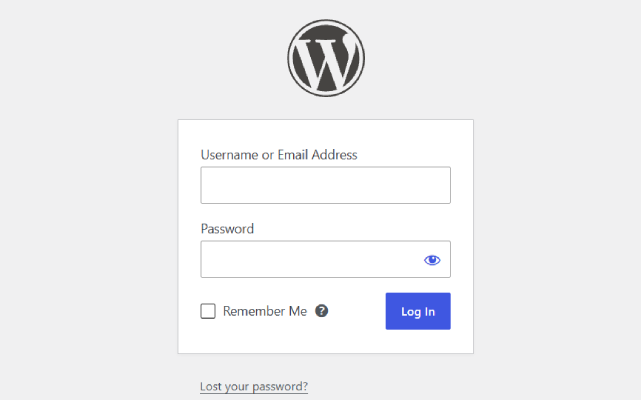
https://example.com/wp-login.php
If you get the WordPress login form, it means the website is using WordPress.
What if you don’t get the login page?
This doesn’t indicate for sure that the website isn’t using WordPress.
Some website owners change their login URLs using plugins or by modifying their website’s code. Other website owners restrict access to their login pages.
So consider this method to be one useful clue as opposed to a definite answer.
3. Look for WordPress-Specific File Paths and Meta Tags
Many WordPress websites leave similar hints in their HTML code. With these hints, you may be able to discover the WordPress CMS without access to their website’s admin area.
For example, there is the so-called WordPress generator meta tag.
To see if the website uses this tag, examine the website’s source code and search for ‘generator’.
If this tag exists, you may see something like the following:
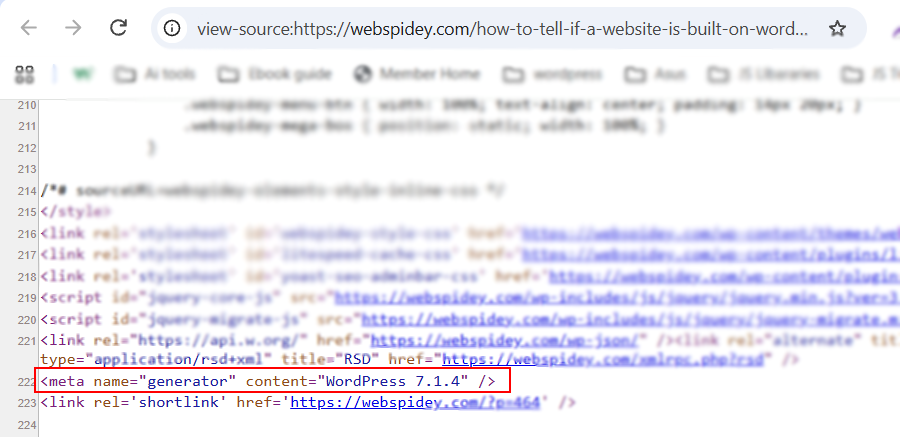
<meta name="generator" content="WordPress 6.x" />
By seeing this tag, we can say with confidence that the website uses the WordPress CMS.
However, not all WordPress websites show this tag. The tag can be removed for customization or other security reasons.
Also, you may look for certain WordPress file paths, such as /wp-content/ or /wp-includes/.
In addition, /wp-admin/ and /wp-json/ can be clues to WordPress websites as well.
If you see /wp-content/themes/ in the code, for example, it may help to figure out which theme is in use by looking at the folders within.
This can be useful when looking at different website designs to see how a website was made.
Alternatively, you can utilize online tools to automatically scan publicly available website data and identify used technologies.
Below are some free tools:
Wappalyzer
Wappalyzer is an automated website technology detection tool.
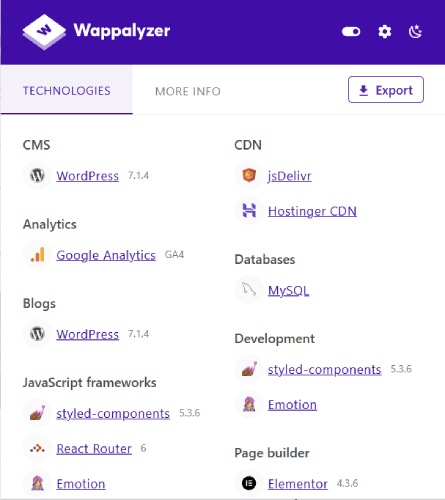
It identifies:
- Web frameworks
- Servers
- Analytics
- Marketing and advertising tools
- Content Delivery Networks (CDNs)
- Programming languages
- Plugins
- eCommerce and CMS solutions
- JavaScript frameworks
Using the tool is free, however, to receive full results, you need to sign up for a free account.
Website: https://www.wappalyzer.com/
BuiltWith
BuiltWith identifies different website technologies, hosting providers, and analytics tools.
It provides information on eCommerce solutions and CMS, server software, frameworks and plugins, as well as the DNS provider and CDNs.
To see the results, you have to enter a domain.
Website: https://builtwith.com/
WPThemeDetector
WPThemeDetector identifies WordPress themes, developers, plugins and themes-related data.
Generally, it is able to find out:
- WordPress themes and plugins
- Theme developers
- Some plugin developers
- Some JavaScript plugins
- Custom themes
- Some inactive plugins
There are several publicly available custom WordPress themes that the tool won’t be able to detect.
Website: https://www.wpthemedetector.com/
Check the Website’s Theme and Plugin Directories
You may be able to find the theme or plugins used on the website you are investigating.
WordPress’s theme and plugin files are saved in specific directories.
For themes, the directory looks like this:
https://example.com/wp-content/themes/theme-name
Here, “theme-name” shows the folder name for the theme, and may give you an indication as to what theme is active or what other themes are installed on the website.
Plugins are loaded in a similar fashion:
https://example.com/wp-content/plugins/plugin-name
You may find something like this:
https://example.com/wp-content/plugins/elementor
This indicates that the website is loading Elementor files.
Using these paths, you may be able to determine whether a website uses elements such as Elementor, WooCommerce, or other WordPress plugins.
Important: These directories or path examples only show information that is publicly available. They don’t always show what is actually active or installed on the website. In addition, some websites use custom themes, or renamed or optimized folders.
You probably won’t need to use all five methods in a single case. The easiest method is usually the best to start with. Use the others only if the results of the first method is unclear.
What If a Website Hides That it Uses WordPress?
Some website owners prefer not to make publicly available WordPress-related information.
There are a few possible reasons for this.
- They want to change the default structure of the website.
- They use security plugins to change the default paths.
- They remove unnecessary generator meta tags.
- They prefer and use custom themes and plugins.
- They use a Headless WordPress setup with a different front end.
In a Headless WordPress website, for example, WordPress may be in the background to manage content and other components, while something else is used to create the front-end.
Therefore, it is always possible that a website uses WordPress even in the absence of evident signs.
Frequently Asked Questions (FAQs)
1. How can I identify WordPress websites?
You can see if WordPress-related paths exist in a website’s page source. For example, check for /wp-content/ and /wp-includes/ paths. You can also try the default WordPress login URL, or use tools like Wappalyzer and BuiltWith.
2. Can I check if a website uses WordPress without accessing its dashboard?
Yes, you don’t need to access the dashboard. You can examine the page source, look for default WordPress URLs and/or use online CMS detection tools.
3. How do I check if a site is WordPress?
One easy way is to use Wappalyzer. It’s a tech detection tool. Either enter the site address, or use the browser extension to see the detected technologies.
4. Can I see which theme a site is using?
Sometimes you can. Looking at source code for file paths like ‘/wp-content/themes’ can help. The theme folder names may be revealing. Also, there are online WordPress theme detection tools.
5. Is it possible to find out what plugins a site uses?
It’s likely that some publicly exposed plugins can be found by looking at file paths like ‘/wp-content/plugins’ in the source code. Not all plugins are publicly exposed though, because some plugins don’t load publicly facing pages.
6. Could a WordPress site hide that it’s built in WordPress?
Yes. Website owners can customize the generator tags, change the login URL, modify file paths, and use a headless WordPress configuration. Hiding the signs doesn’t change what CMS is being used.
7. Is all/every site built using WordPress?
Not all. Other CMS (content management systems) and website building platforms and technologies include Joomla, Drupal, Shopify, Wix, Squarespace, and others.
Each method gives you an approach to investigate a website. While no single method guarantees a result in every case, using different methods in combination gives you a better chance of identifying the platform in question.